
Connecting to a Windows VPS
--> Using (RDP)
To connect to a Windows Server, we use the built-in Windows tool Remote Desktop Connection (MSTSC). The default port for an RDP connection is 3389 TCP/UDP.
1 Open Remote Desktop Connection
Go to your Windows Start menu and type mstsc to open the Remote Desktop Connection tool.
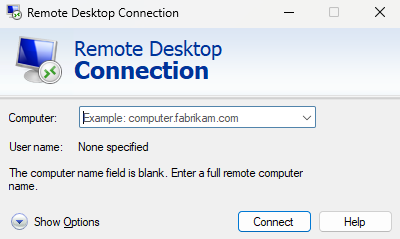
Enter your VPS IP address in the field provided
2 Enter Server Details
Enter your Windows Server IP Address and click the Connect button.
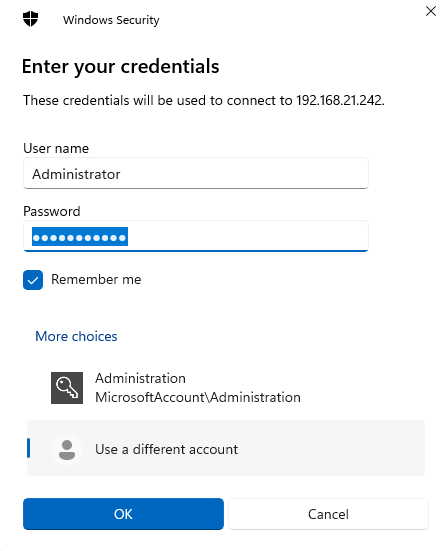
Next, you’ll be prompted to enter your server login details:
- Username:
Administrator - Password: Your server password (check your PetroSky Client Area)
3 Connect to Server
Username: Administrator
Password: Your own Server Password
Password: Your own Server Password
You can check “Remember my credentials” to save your login information.
After that, click OK. A security warning may appear — don’t worry, simply click Yes to proceed and connect to your Windows VPS.